Amazon S3 : A Clear Guide to Buckets and Infrastructure
Hi I am Krupa! I’m a Full-Stack Developer focused on building secure, scalable web applications with Java, JavaScript/TypeScript, and Node.js. I take pride in solving challenges like authentication and Single Sign-On. Off work, I’m a 2× marathon finisher and avid photographer, always seeking new adventures.
Amazon S3 is one of the most powerful and foundational services in the AWS ecosystem — and it’s often the first service engineers use when moving to the cloud.
In this guide, we’ll go from the absolute basics of creating your first S3 bucket, to understanding cost optimization, security, and even performance tuning with features like Cross-Region Replication and Transfer Acceleration.
1. What is Amazon S3?
Amazon S3 (Simple Storage Service) is AWS’s fully managed object storage service. You store data as objects inside buckets, which are like folders in the cloud.
Why is it so widely used?
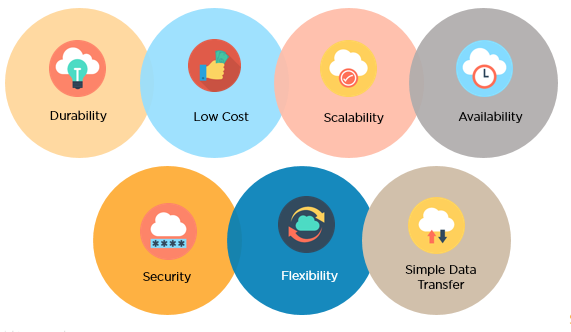
It's one of AWS’s oldest and most cost-effective services.
It offers 11 nines of durability — meaning your files are incredibly safe.
It's perfect for storing:
Static websites
Backups and logs
Images, videos, and documents
To store something in S3, you first create a bucket, and then upload objects (files) into it.
Steps to Create a Bucket:
Go to the S3 service in the AWS Console.
Click "Create bucket".
Give it a unique name (globally unique across all AWS users).
Choose a region close to your users.
(Optional) Enable public access if you’re hosting a website.
Click "Create".
Uploading Objects:
You can upload files via:
AWS Console (drag & drop)
AWS CLI:
aws s3 cp file.txt s3://your-bucket/AWS SDKs (Node.js, Python, etc.)
Each object can store: The file data, metadata, tags and versioning (if enabled)
2. Lifecycle and Storage Classes
Amazon S3 lets you manage storage costs by choosing the right storage class based on how often you need the data. As your files become older or less relevant, you can automatically move them to cheaper storage using lifecycle rules.
Storage Classes (from hot to cold):
Standard:
For files you access frequently, like active project documents, design assets, or current reports.Infrequent Access (IA):
For files you don’t use often but want quick access to — like older reports, archives, or unused product images.Glacier / Deep Archive:
For long-term storage of rarely accessed data, like backups, compliance logs, or shut-down project files. Retrieval can take hours, but it’s extremely low-cost.
Lifecycle Rules: Automate It
Instead of manually moving files between storage classes, you can create lifecycle policies to do it for you.
Example:
"Move all files older than 90 days to Glacier."
This keeps your bucket clean, your costs low, and your storage usage smart — especially as you scale.

3. Access Policies and Permissions
By default, all S3 buckets and objects are private — only the bucket owner (your AWS account) can access them.
To allow others (users, apps, or the public) to access your files, you need to configure access policies.
Here are the main ways to manage permissions:
a. Bucket Policies (public or global access)
Bucket policies are written in JSON and apply to the entire bucket.
Common use case: public websites (e.g., HTML, CSS, images).
You can allow read-only access to all users for files in your bucket.
{
  "Effect": "Allow",
  "Principal": "*",
  "Action": "s3:GetObject",
  "Resource": "arn:aws:s3:::my-bucket-name/*"
}
Use with caution — this makes your bucket’s contents public. Only use for static websites or open data.
b. IAM Policies (access for users, roles, or applications)
IAM (Identity and Access Management) lets you grant access per user or per app.
These policies are attached to:
Individual IAM users
IAM roles used by Lambda, EC2, ECS, etc.
You define exactly what actions are allowed:
s3:GetObject→ downloads3:PutObject→ uploads3:DeleteObject→ delete
Example Use Case:
Your backend service (running on Lambda or EC2) needs permission to upload logs to a private bucket.
You attach an IAM policy to its role with
s3:PutObjectfor that bucket.
c. Pre-Signed URLs (temporary and secure)
A pre-signed URL is a temporary link that allows someone to upload or download a specific file.
Useful when you want to give limited-time access to a private object — without making your bucket public.
Example Use Case:
A user uploads a profile picture via your frontend.
Your backend generates a pre-signed PUT URL, and the frontend uploads the image directly to S3 (securely, without giving full S3 access)
d. ACLs (Access Control Lists) – Legacy method
- AWS now recommends using bucket policies and IAM instead, since ACLs can be confusing and harder to manage.
Use ACLs only if:
- You have a very specific object-level permission use case or if you're working with legacy systems
5. Encryption and Security
S3 keeps your data safe using encryption both in transit and at rest.
In Transit:
- All communication uses HTTPS (TLS)
At Rest:
AWS uses AES-256 encryption by default (SSE-S3)
For advanced control, use:
SSE-KMS – With AWS Key Management Service
SSE-C – Bring your own encryption key
This ensures that even if someone gains access to the storage system, your data is still protected.
6. Versioning
Versioning lets S3 keep every version of an object — even if it's overwritten or deleted.
Why Use It?
Restore accidentally deleted or overwritten files
Keep a history of changes
Required for Cross-Region Replication (CRR)
🛠️ How to Enable
Go to your bucket → Properties
Scroll to Bucket Versioning → Click Enable
⚠️ You can’t disable versioning once enabled — only suspend it.
Example
Upload report.pdf multiple times → S3 stores all versions
Delete report.pdf → S3 adds a delete marker, but older versions remain
7. Cross-Region Replication (CRR)
Need to store backups in another AWS region? Want faster access for global users?
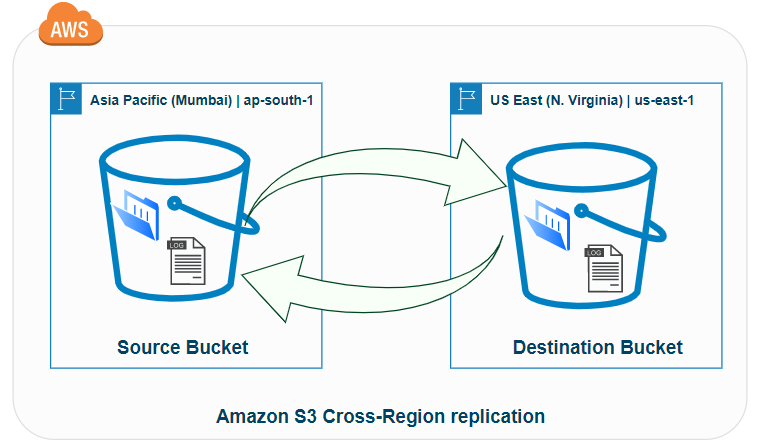
CRR lets you automatically copy all new objects from one bucket to another in a different region.
Use Cases:
Disaster recovery
Compliance with regional storage laws
Multi-region app delivery
To set it up, just:
Enable versioning on both source and destination buckets
Add a replication rule
Let AWS handle the rest!
8. S3 Transfer Acceleration
This feature speeds up uploads and downloads, especially for users far from your S3 bucket’s region.
How it works:
Uses AWS's global edge locations (via CloudFront) to receive your file
Then transfers it over Amazon’s fast internal network to the destination bucket
This helps avoid slow public internet routes.
Example Use Case:
You're in Germany, uploading a 2 GB video to a bucket in US-East (Virginia).
With Transfer Acceleration, your upload hits an edge server in Berlin, then zips across AWS’s backbone — much faster!
Note on Pricing:
Transfer Acceleration is not free — it costs more than regular S3 transfers.
Only use it when performance is critical (e.g., global uploads, large file handling).

Wrap-Up
Amazon S3 is a core AWS service — simple to start, but powerful when used right.
In this guide, you covered:
Creating buckets and uploading files
Optimizing cost with storage classes and lifecycle rules
Securing access with IAM, bucket policies, and pre-signed URLs
Protecting data with encryption and versioning
Boosting performance with Cross-Region Replication and Transfer Acceleration
You’re now equipped to use S3 not just for storage — but for scalable, secure, cloud-native architecture.